Chatbox
Lightweight native AI client for macOS, Windows, Linux, iOS, and Android connected directly via Custom OpenAI Provider.
https://api.bf16.ai/v1openai-completionsPer chi è pensato
Users who want a clean, zero-Docker native desktop and mobile app with local SQLite history and direct BYOK connection to bf16.ai.
Architettura e Integrazione con bf16.ai
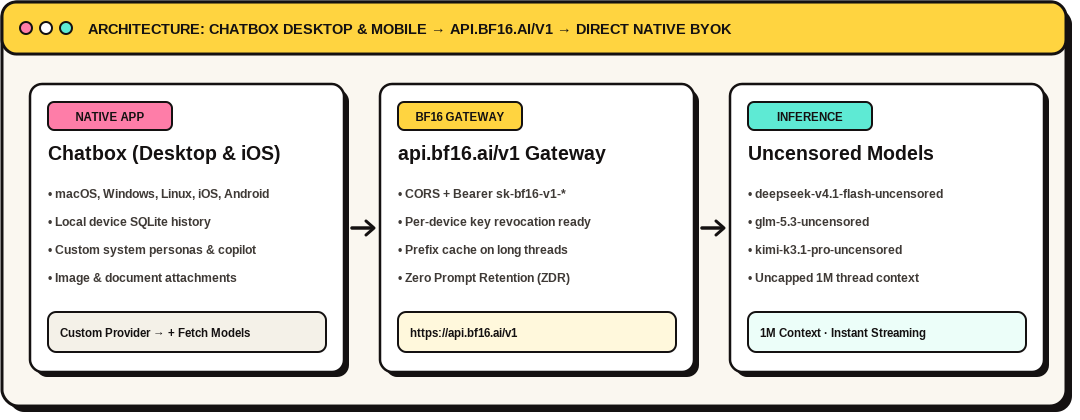
Chatbox (`chatboxai.app`) is a lightweight native client across macOS, Windows, Linux, iOS, and Android that stores conversation threads locally on your device and connects directly to any OpenAI-compatible API.
Adding bf16.ai as a Custom Provider in Chatbox takes under 30 seconds: click **Fetch** to pull all live uncensored models directly from `GET https://api.bf16.ai/v1/models`, including 1M context windows and Vision support.
Configurazione
Accedi per inserire la tua chiave API →I comandi mostrano $BF16_API_KEY. Accedi per inserire automaticamente la tua chiave reale.
One-Command API Key Verification Before Pasting into Chatbox
Tests your key against https://api.bf16.ai/v1/models so you know Fetch in Chatbox will succeed.
export BF16_API_KEY="sk-bf16-v1-..."
curl https://api.bf16.ai/v1/models -H "Authorization: Bearer $BF16_API_KEY"- 1
Add Custom Provider in Chatbox Settings
Open Chatbox → Settings → Model Provider → click "+ Add" at the bottom. Set API Mode to "OpenAI API Compatible", API Host to https://api.bf16.ai/v1, API Path to /chat/completions, and paste your API key.
API Host: https://api.bf16.ai/v1 API Path: /chat/completions API Key: $BF16_API_KEY - 2
Click Fetch & Enable Capabilities
Click "Fetch" under Models, add all active bf16.ai models, and enable Vision + Reasoning + Tool Use badges next to each model.
Riferimento Campo per Campo
bf16.aiOpenAI API Compatiblehttps://api.bf16.ai/v1Chatbox shows preview: https://api.bf16.ai/v1/chat/completions
sk-bf16-v1-••••••••••••Click "+ Fetch" to import GLM-5.3, DeepSeek V4.1 Flash, and Kimi K3.1 ProModelli Consigliati per Ruolo
Assegna la progettazione ai modelli Flagship e i subtask rapidi o screenshot ai modelli Flash.
| Ruolo | Model ID | Motivazione | USD / 1M Token |
|---|---|---|---|
| Fast Everyday Chat & Vision | deepseek/deepseek-v4.1-flash-uncensored | Instant mobile/desktop streaming + image attachment support. | $0.26 in / $0.045 cached / $1.00 out |
| Deep Coding & Technical Problem Solving | zai-org/glm-5.3-uncensored | High reasoning accuracy on long prompts. | $1.35 in / $0.25 cached / $4.20 out |
Come capire se ha funzionato
- Fetch lists all active bf16.ai models immediately.
- Test message streams cleanly and logs in bf16.ai/dashboard/logs.
- curl https://api.bf16.ai/v1/models -H "Authorization: Bearer $BF16_API_KEY"
Guardrail di Produzione e Limiti di Spesa
- When syncing Chatbox across desktop and mobile, create separate keys (`chatbox-mac`, `chatbox-iphone`) in /dashboard/keys so you can revoke a lost phone independently.